


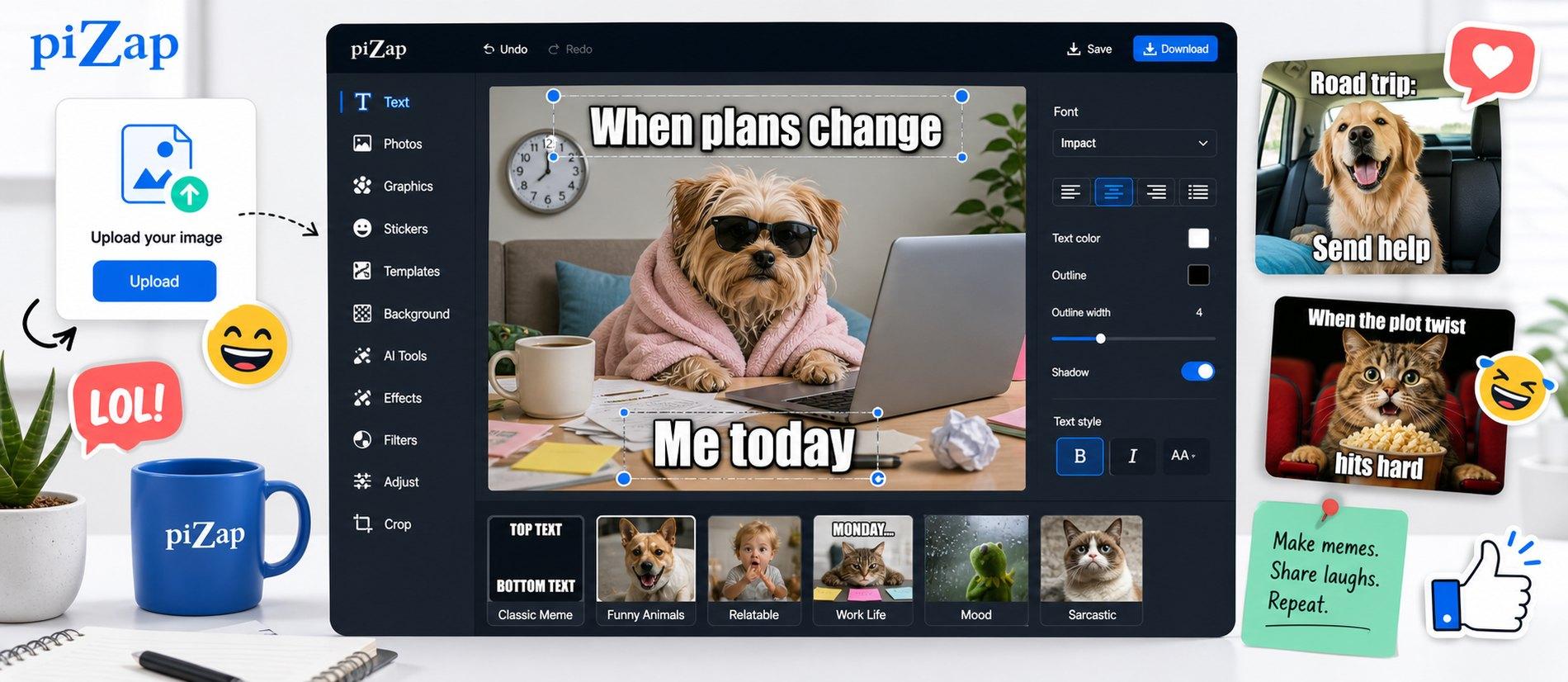
Turn a photo from your own camera roll into a meme: upload it, add a caption in a bold outlined font, and share it. Your own photos make the best inside jokes, and they never run into the problem of a template everyone has already seen.
Crop tight. The face or the object that carries the joke should fill most of the frame, with room at the top or bottom for the text.
If the photo is busy, add a dark bar behind the caption or increase the outline so the words stay readable.
Open piZap with the photo and the line ready, try the caption at the top and at the bottom, and keep the one that reads faster.
Step by step
Caption your own photo as a meme
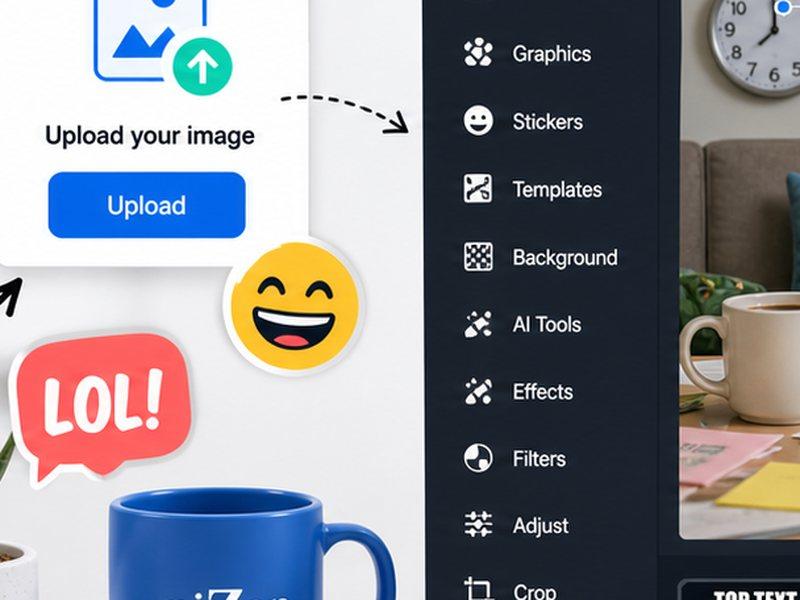
Open piZap and upload the photo, then crop to the moment.

Add the caption in a bold outlined font where the photo has the least detail.
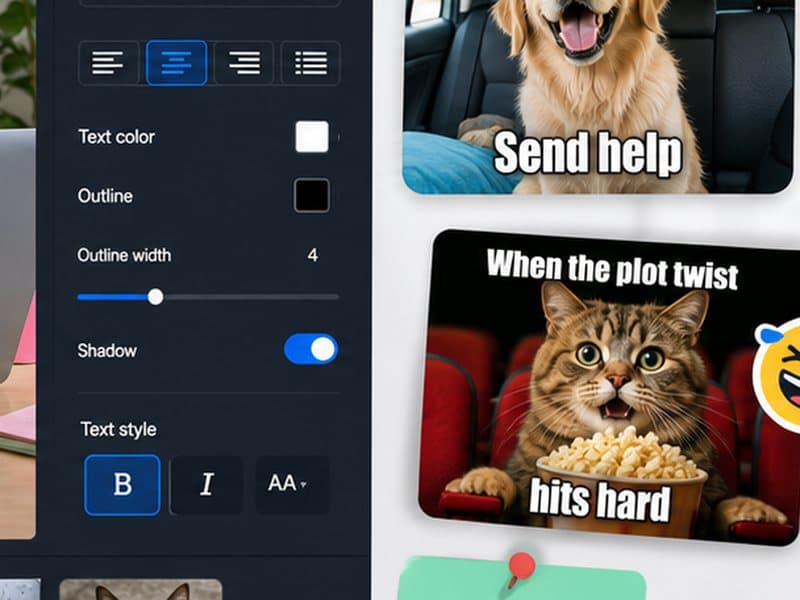
Add a speech bubble or sticker if it helps, then save and share.
Start with the photo that already makes you laugh
Start with the photo that already makes you laugh, crop it to the moment, and write the one line that explains it. Add a sticker or a speech bubble only if it sharpens the joke.
Memes people make from their own photos
- Pet reaction memes
- Friend and family inside jokes
- Travel and food fails
- Office and group-chat memes
Keeping the caption readable on a photo
- Crop tight to the face or object that carries the joke.
- Use a bold font with a thick outline.
- Put the caption where the photo has the least detail.
- Add a speech bubble when the joke is something someone said.
- Check it at phone size.
Caption it in piZap
Open piZap, upload the photo, crop it, and add the caption in a bold outlined font. Add a speech bubble or sticker if it helps, then save and share.
Stickers and text styles for photo memes
Ready when you are
Bring your idea to life in piZap
Open the editor with your idea or image, try a few directions, and shape the result until it feels ready for the people and place you have in mind.