


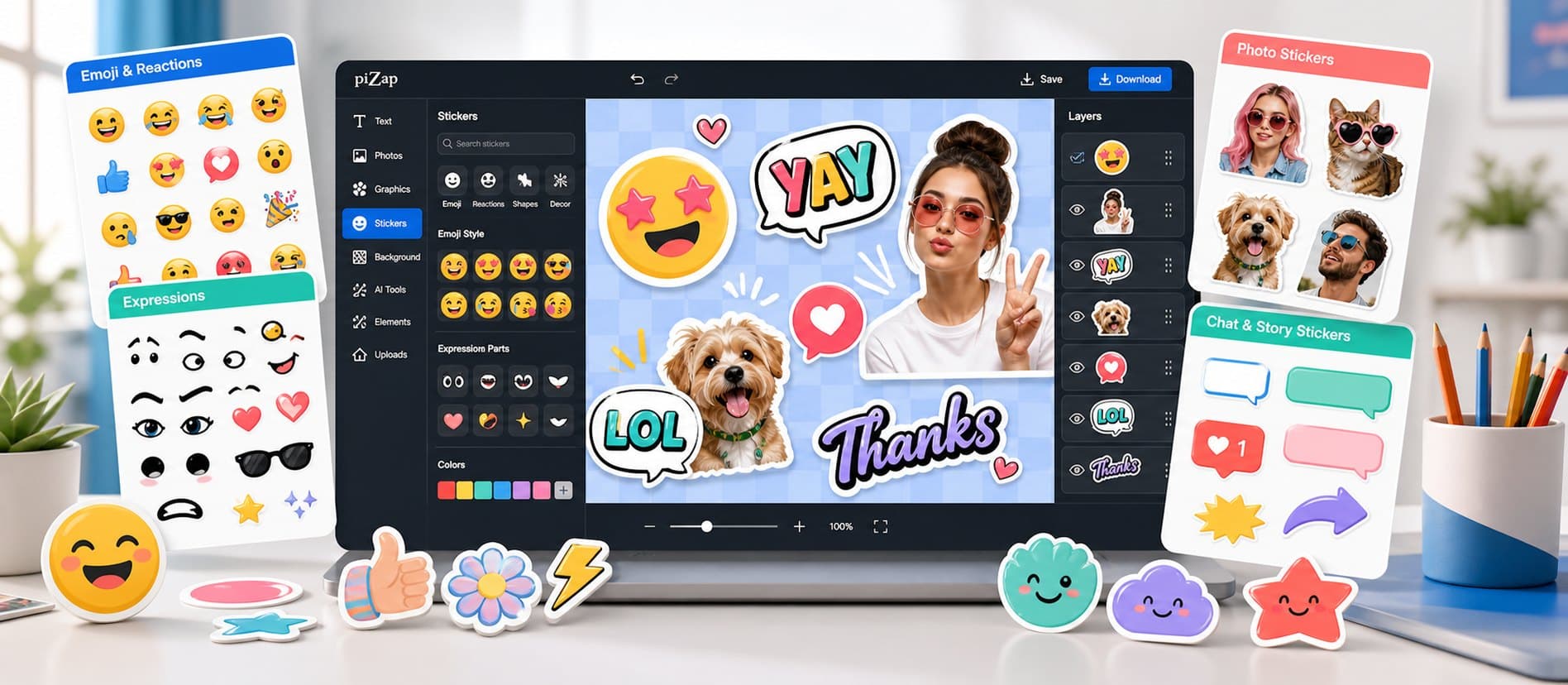
Turn any photo into a sticker in a few steps: upload it to piZap, cut out the subject, add an outline or a caption, and save. Selfies, pets, kids, food, and travel shots all make good stickers when the subject has a clear edge.
Choose the photo for its edges, not its memories. A subject against a plain wall or sky cuts out cleanly; a busy background means more cleanup.
After the cutout, a thick white outline is the single change that makes a photo sticker look finished and keeps it visible on any background.
Open piZap with the photo ready, make the cutout, and compare the sticker with and without an outline before you save.
Step by step
Make a sticker out of a photo
Upload the photo to piZap and crop in close to the subject.

Cut out the background, tidy the edge, and add a white outline or a short caption.

Preview it small, save it, and use it in chats, stories, and photo edits.
Choose a photo that will cut out cleanly
Start with a photo where the subject stands apart from the background. Cut it out, keep the crop tight, and decide whether a caption adds anything before you add one.
Photo stickers people make most
- Selfie reaction stickers
- Pet face stickers
- Food and drink stickers for stories
- Travel moments as scrapbook stickers
Cutout details that matter
- Pick photos with strong contrast between subject and background.
- Zoom in around hair, fur, and fingers when cleaning up the cutout.
- Add a white outline so the sticker is visible on any background.
- Keep captions to one or two words.
- Save the sticker larger than you need; it can always be shrunk.
From photo to sticker in piZap
Open piZap, upload the photo, and use the cutout tool to remove the background. Add an outline, a short caption if you want one, and save the sticker for chats, stories, collages, and photo edits.
Stickers that pair well with photo cutouts
Ready when you are
Bring your idea to life in piZap
Open the editor with your idea or image, try a few directions, and shape the result until it feels ready for the people and place you have in mind.