


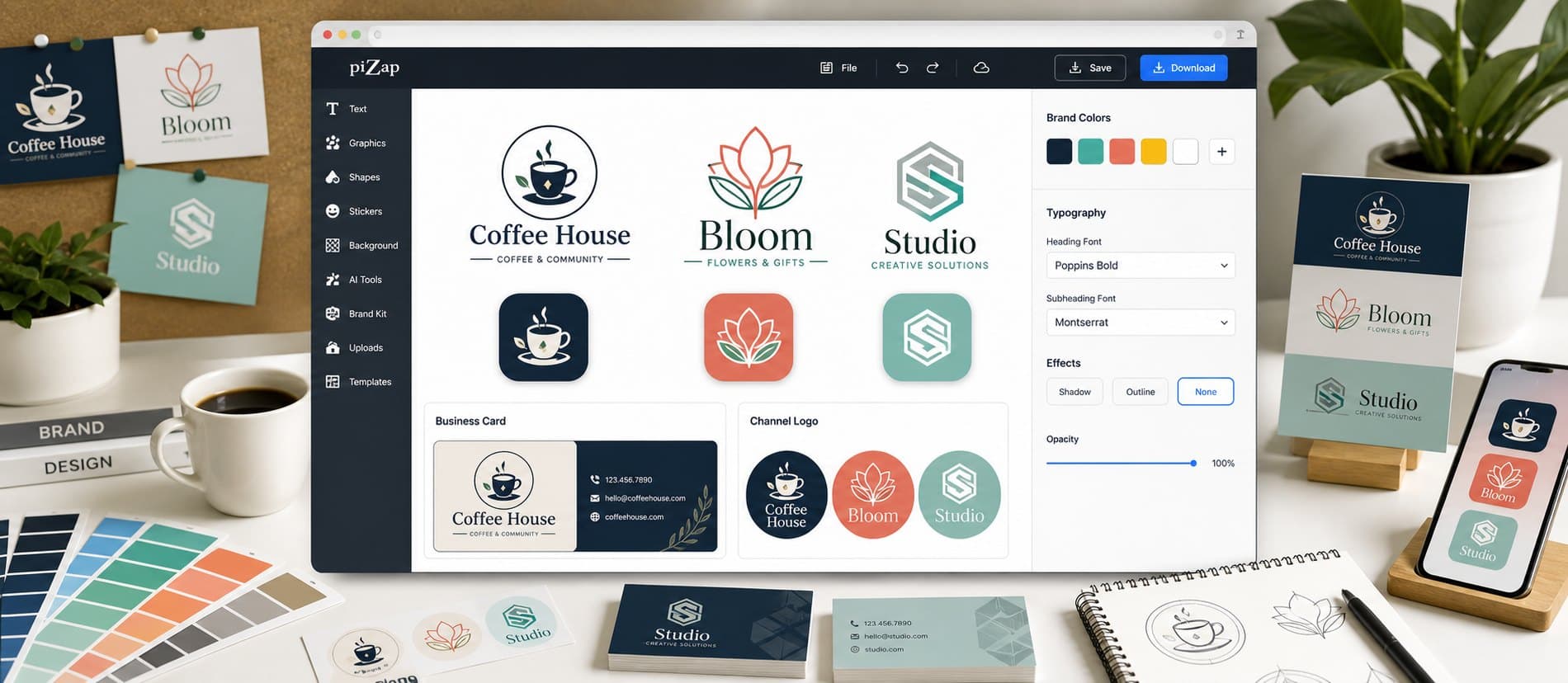
In piZap, you can create a simple logo concept for a project, channel, or small business. Start with a name, color palette, logo idea, icon shape, or business card layout, choose a direction, and keep shaping it until it feels right for the final use.
Lead with the part people should notice first. From there, use logo templates, brand colors, type controls, card layouts, stickers, backgrounds, and exports to add personality, clarify the message, and keep the whole design feeling connected.
Use a square-first composition and check that the main subject still works when shown inside a circular or small icon crop.
When you are ready to create, open piZap with one example direction in mind. Try a few variations, compare what works, and save the version that best fits your audience and format.
Step by step
From first idea to finished design
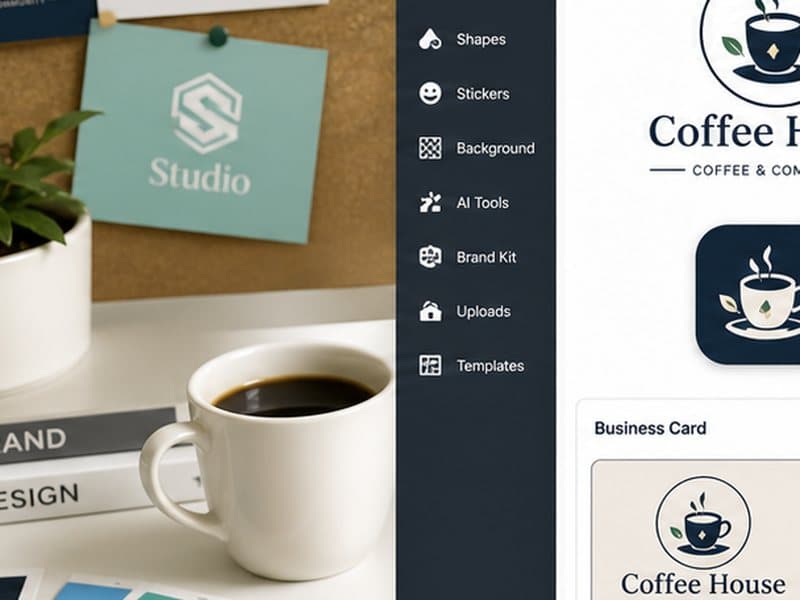
Start with a name, color palette, logo idea, icon shape, or business card layout. Choose a template or canvas that matches where the finished design will appear.
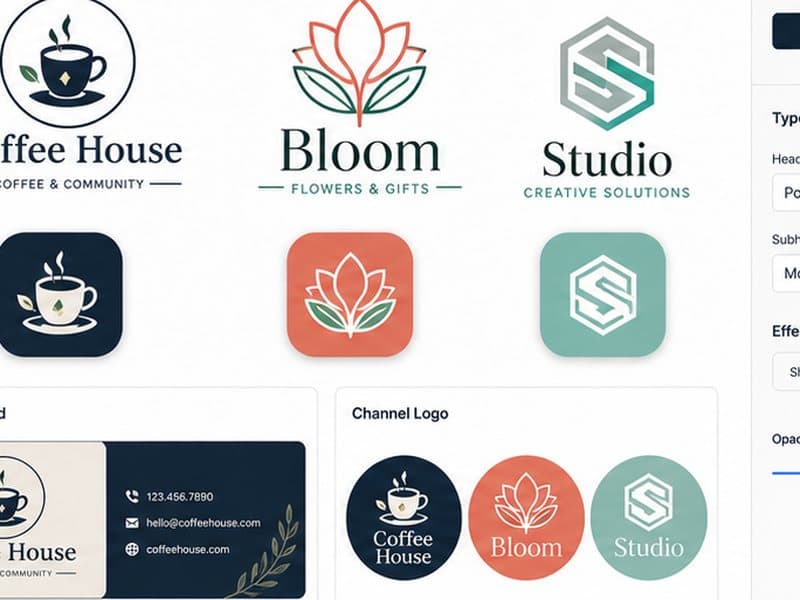
Build the main visual around the part people should notice first. Add your photo or idea, set the crop, write concise text, and use logo templates, brand colors, type controls, card layouts, stickers, backgrounds, and exports where they improve the design.
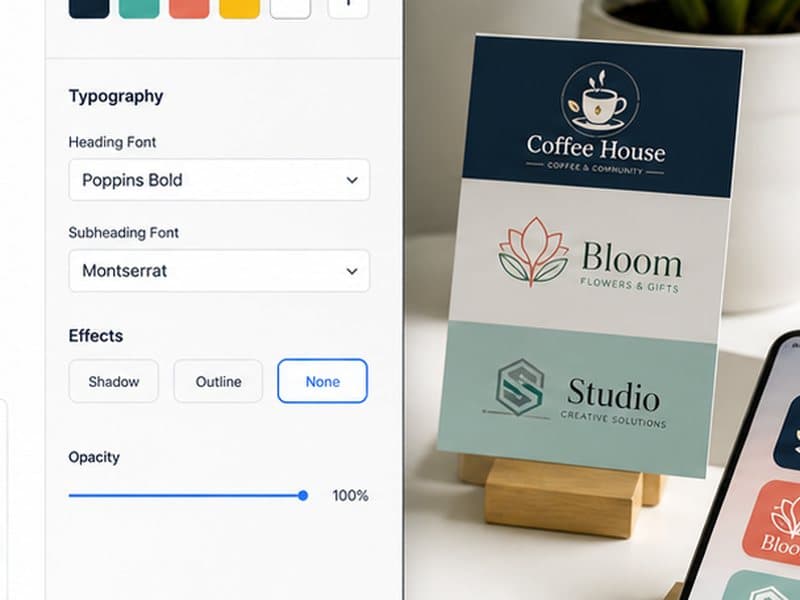
Review the result at the size people will actually see it, then save it or adapt another version for a related format.
Start with what you want to make
Begin with a name, color palette, logo idea, icon shape, or business card layout, choose the direction that feels most promising, and shape it around where the finished design will be shared, posted, printed, or saved. You can refine the details as the idea takes shape.
Make it your own
- Logo concepts
- Channel badges
- App-style icons
- Brand marks
Details that make the design work
- Use a square-first composition and check that the main subject still works when shown inside a circular or small icon crop.
- Use one or two typefaces and keep spacing consistent.
- Check that the mark still works at a small profile or icon size.
- Create a light and dark version if the design may sit on different backgrounds.
- Keep decorative graphics secondary to the name or symbol.
Bring it together in piZap
Use a square-first composition and check that the main subject still works when shown inside a circular or small icon crop. Open a template or bring your own image into piZap, make the main creative choice first, and then add text, stickers, effects, or backgrounds where they help the idea come through.
Keep creating with piZap
Ready when you are
Bring your idea to life in piZap
Open the editor with your idea or image, try a few directions, and shape the result until it feels ready for the people and place you have in mind.
Create with piZap