


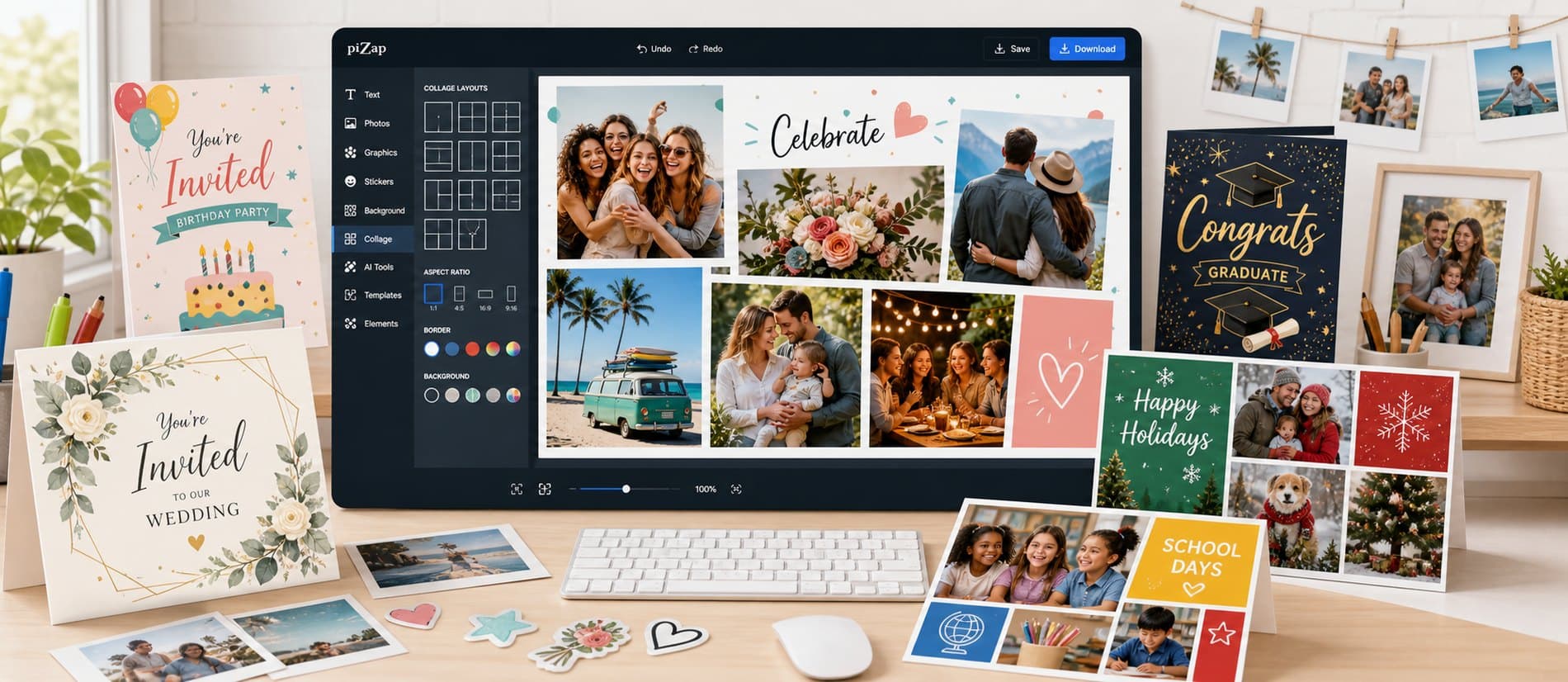
Make a graduation card, announcement, or thank-you note with the graduate's photo, the school year, and a short message. Start from a graduation template, swap in the photo, and add caps, confetti, and a congratulations line from the graduation collections. Share it online or save it for printing at home.
The photo and the year carry a graduation card. Put them first, keep the message to a sentence, and let the caps and confetti frame the design instead of filling it.
Use the school colors as the accent color and the card will feel personal without extra decoration.
Open piZap with the grad's photo and the message ready, try a card and an announcement layout, and save the one that fits how you will share it.
Step by step
Make a graduation card in piZap
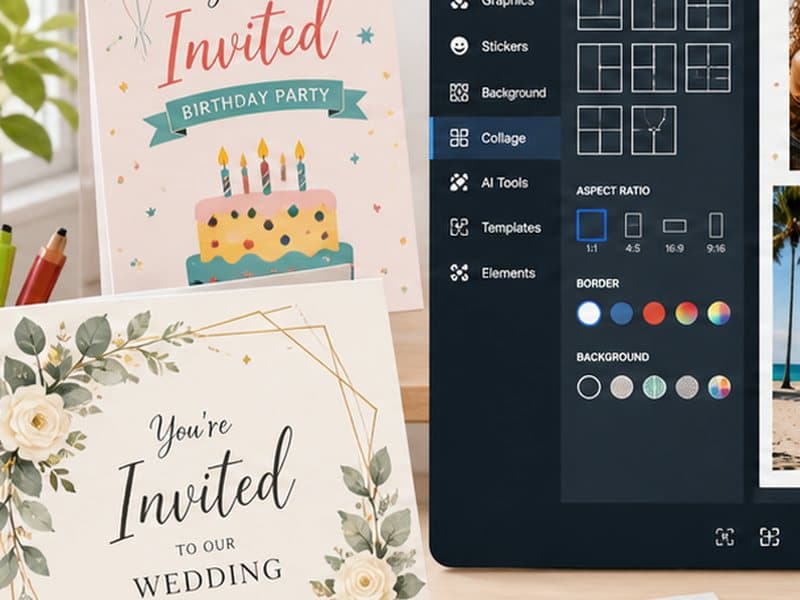
Open piZap and pick a graduation template or a card-sized canvas.
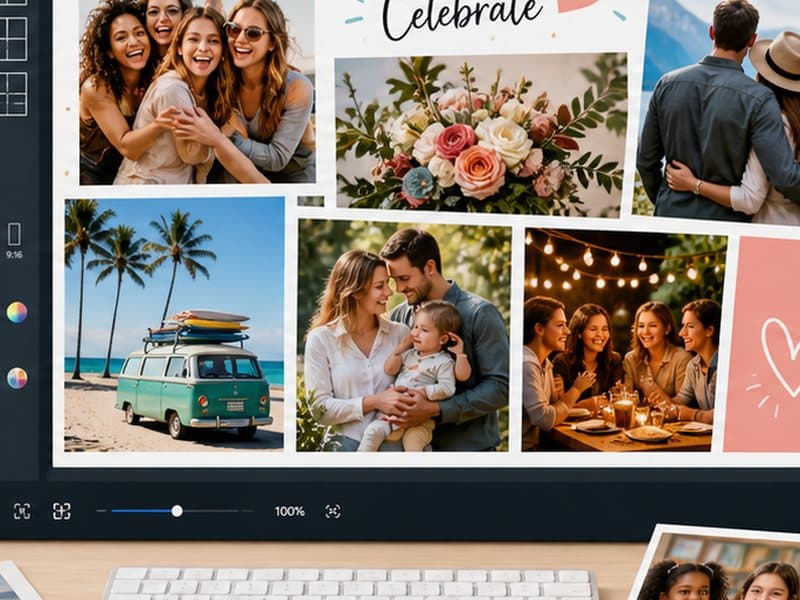
Place the graduate's photo, add the year and a short message, and finish with a cap, banner, or confetti sticker.

Check it at print size and phone size, then save it to share or print.
Start with the photo, the year, and one message
Start with the graduate's photo, the school year, and one message: congratulations, a thank-you, or an announcement with the date. Choose a card template, then adjust colors and stickers.
Graduation cards people make
- Congratulations cards with the grad's photo
- Graduation announcements with the date and school
- Thank-you cards for family and teachers
- Party invitations for the celebration
Keeping the card clear and personal
- Lead with the photo and the year.
- Keep the message to one or two sentences.
- Use the school colors as the accent.
- Add caps, confetti, and banners from the graduation stickers sparingly.
- Check the card at print size and at phone size before saving.
Build the card in piZap
Open piZap, choose a graduation template or a card-sized canvas, place the photo, and add the year and message. Finish with a sticker or two from the graduation collections, then save it to share or print.
Graduation templates, stickers, and backgrounds
Ready when you are
Bring your idea to life in piZap
Open the editor with your idea or image, try a few directions, and shape the result until it feels ready for the people and place you have in mind.