


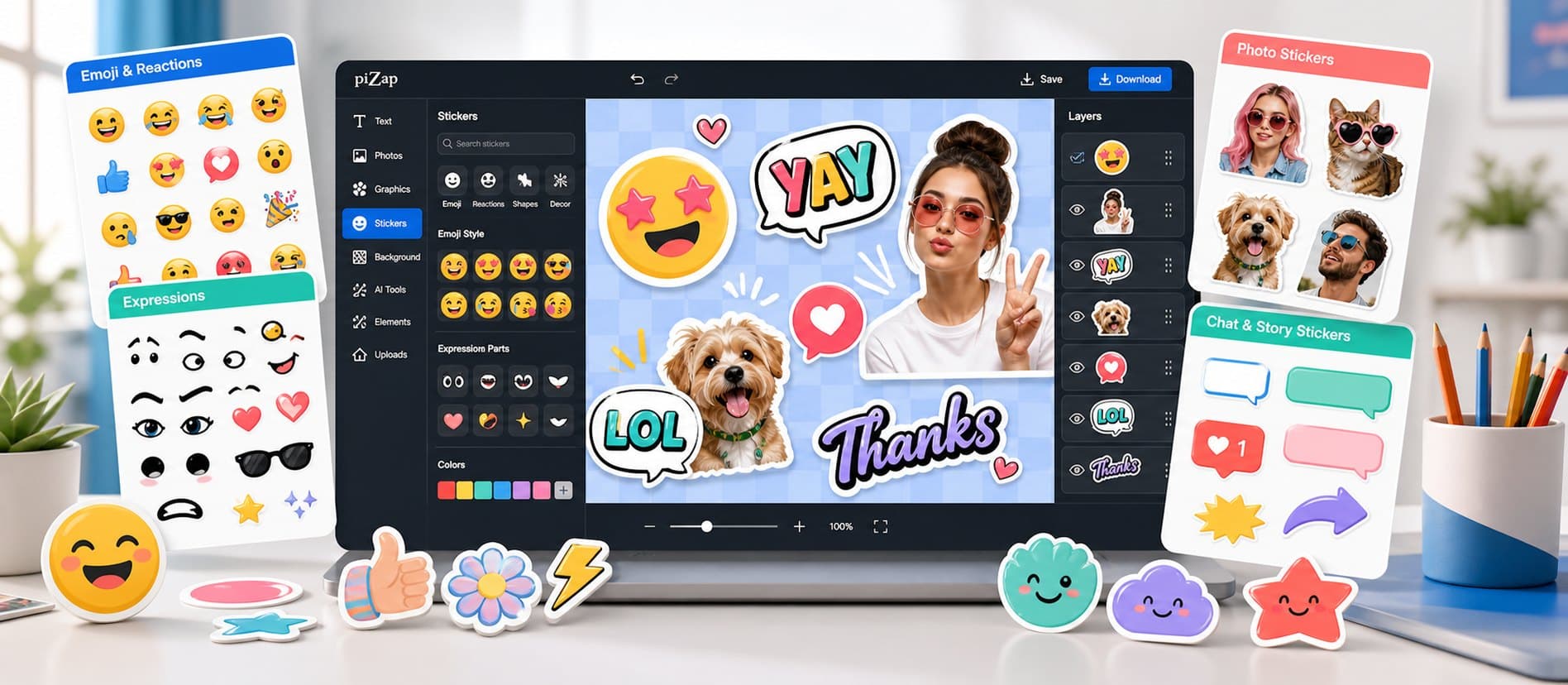
Make stickers for Instagram stories that are actually yours: cutouts of your face or your pet, word art in your colors, arrows and sparkles that match your feed. Build them in piZap, save them, and layer them over your story in Instagram.
Stories are vertical and fast. A sticker needs a bold silhouette and strong contrast to register in the second or two someone spends on a frame.
Make a few stickers in the same style, including a couple of plain word-art pieces, so you can decorate a whole story series without the frames looking random.
Open piZap, make the sticker on a square canvas, save it, and add it to your story the same way you add any image from your phone.
Step by step
Make a story sticker that fits your feed
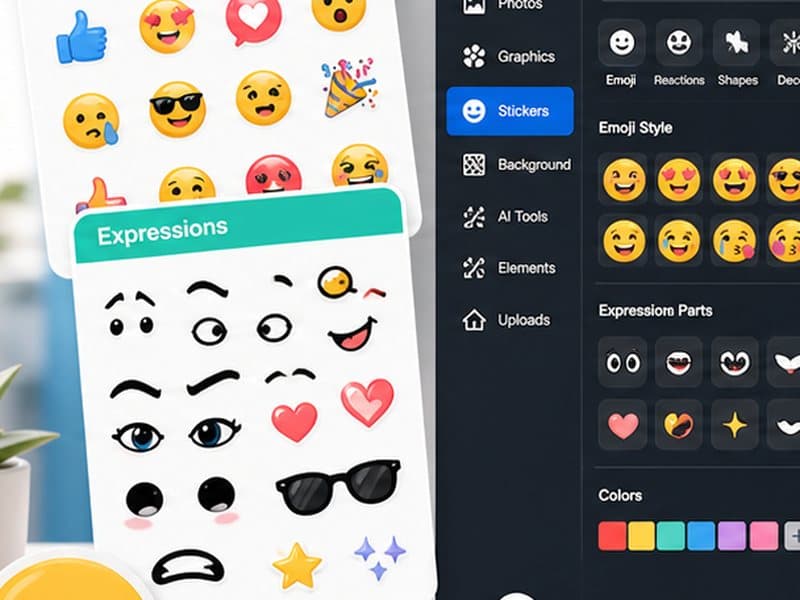
Open piZap on a square canvas and pick a photo, a graphic, or a word-art idea.

Cut out the subject or style the text, add an outline, and keep the design bold.
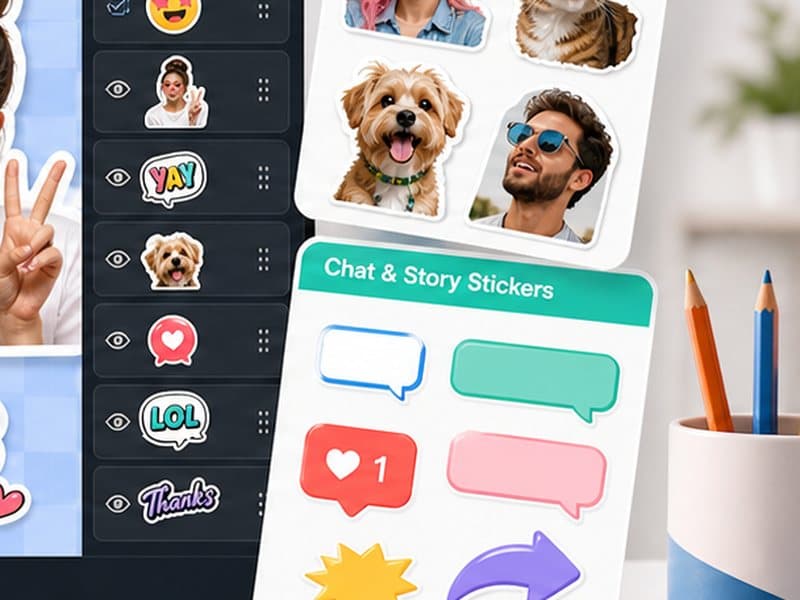
Save the sticker and layer it over your story in Instagram.
Make stickers for the story you are telling
Start with the story in mind: a travel day, a product drop, a celebration. Make stickers that fit that frame, from a face cutout to a two-word caption to a hand-drawn arrow.
Story stickers people reach for
- Face and pet cutouts for reaction frames
- Word-art stickers in your feed colors
- Arrows, stars, and speech bubbles to point at details
- Matching sticker sets for a story series
Keeping stickers readable on a vertical frame
- Use a bold shape and strong contrast against both light and dark photos.
- Keep text to two or three words in a large font.
- Add an outline so the sticker separates from the photo behind it.
- Repeat one color across the set so the series looks planned.
- Save stickers on a square canvas so they place cleanly in a story.
Make it in piZap, place it in Instagram
Open piZap, cut out the subject or write the word art, add an outline, and save. In Instagram, add the saved image to your story and resize it like any sticker.
Story templates and sticker collections
Ready when you are
Bring your idea to life in piZap
Open the editor with your idea or image, try a few directions, and shape the result until it feels ready for the people and place you have in mind.