


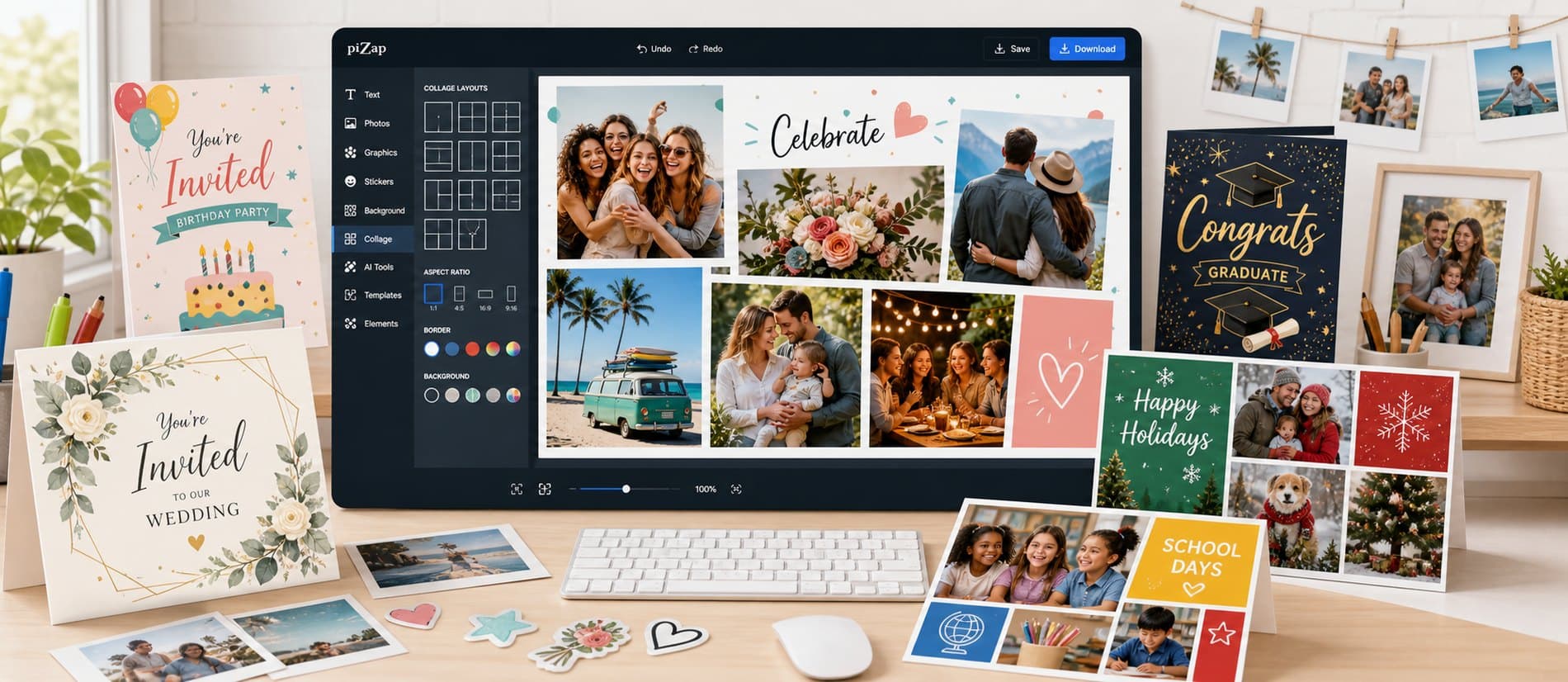
Make a photo collage online in a few minutes: choose a grid or freeform layout, add your photos, and adjust spacing, frames, and background until the collage tells the story. The piZap editor is free to start in a desktop browser, and the piZap app does the same on a phone.
A collage works when one photo leads. Give the best shot the largest space, keep the supporting photos simpler, and crop each one so the subject is obvious.
Match the frame and background to the photos rather than to the occasion. A neutral background with thin frames makes almost any set of photos look intentional.
Open piZap with your photos picked, try a grid and a freeform layout, and save the version where the main photo still stands out.
Step by step
Make a collage from your photos
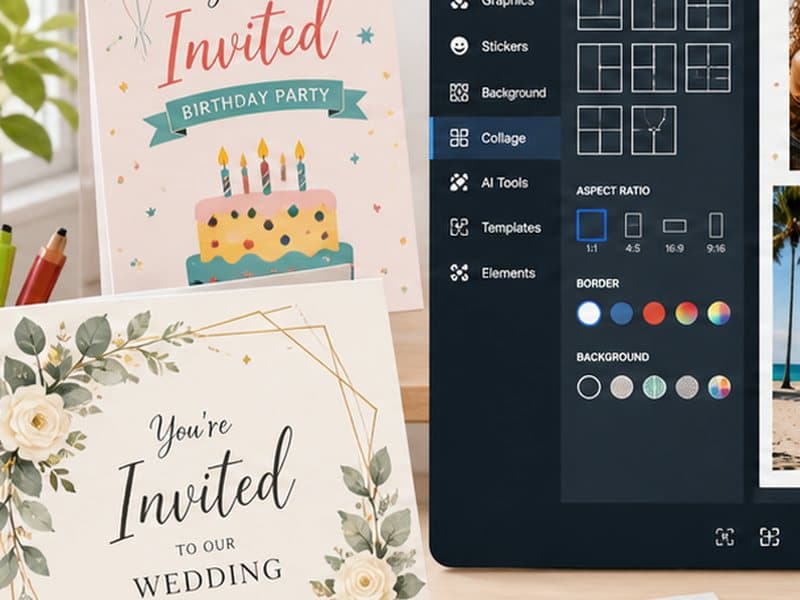
Open piZap, choose a collage layout, and upload the photos you want to combine.
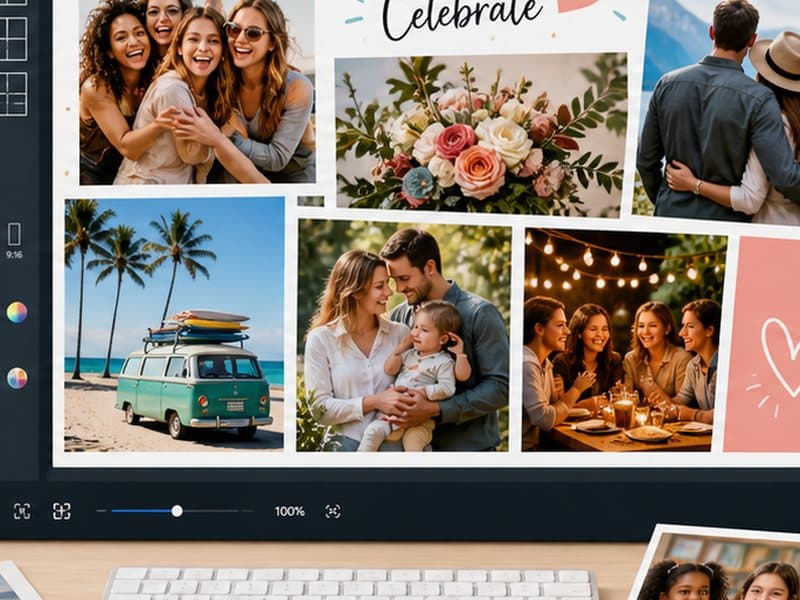
Place the lead photo in the largest space, fill the rest, and adjust spacing, frames, and background.

Add a short title if needed, then save the collage to share or print.
Pick the lead photo first
Start with the photos you want to show together, choose the one that should lead, and pick a layout with the right number of spaces. Add frames, a background, and text last.
Collages people make most
- Family and vacation collages
- Birthday and anniversary photo boards
- Before-and-after and progress collages
- Collages for Facebook, Instagram, and group chats
Layout choices that keep a collage clean
- Give the best photo the largest space.
- Use fewer photos when each one matters.
- Keep spacing consistent and frames thin.
- Choose a background that does not compete with the photos.
- Add text only if the collage needs a title or a date.
Build the collage in piZap
Open piZap, choose a collage layout, and place the lead photo first. Fill the rest, adjust spacing and frames, pick a background, and save it to share or print.
Frames and backgrounds for collages
Ready when you are
Bring your idea to life in piZap
Open the editor with your idea or image, try a few directions, and shape the result until it feels ready for the people and place you have in mind.