



Combine several photos into one collage for your Facebook cover or feed. Pick a collage layout, drop in the photos, and keep the best one largest. For a cover collage, start from a wide 820 × 312 canvas so the finished collage fits the top of your profile or page without cropping.
Cover collages work best with three to five photos and no text. Put the strongest photo in the middle, where it stays visible on phones, and let the side photos be simpler.
For a feed post, a square or 4:5 collage gives you more room. Use a grid for a trip or an event and a single large photo with small supporting ones for a birthday or an announcement.
Open piZap with the photos ready, build the collage, and check the center crop before saving the cover.
Step by step
Make a photo collage for a Facebook cover
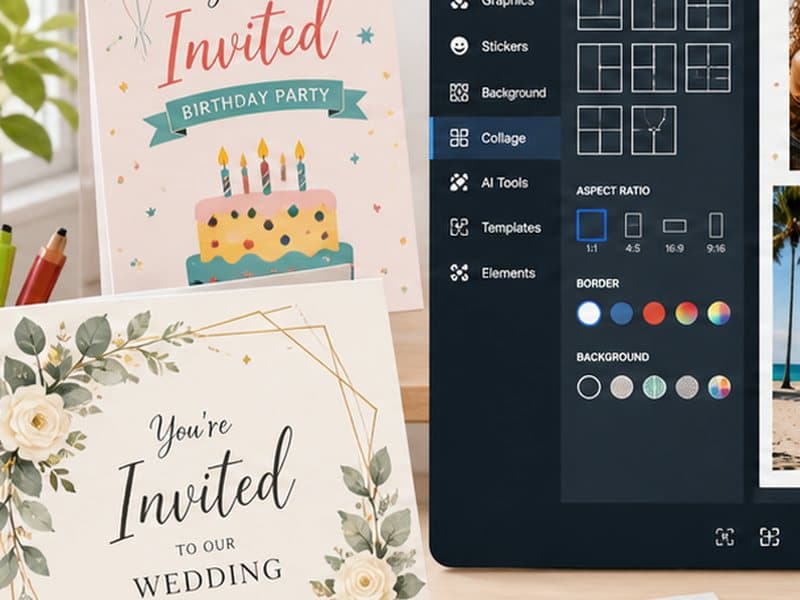
Open piZap, set up a wide 820 × 312 canvas, and pick a collage layout with three to five spaces.

Place the strongest photo in the center and the supporting photos around it, then adjust spacing, frames, and background.

Check the center crop, save the collage, and upload it as your cover.
Pick the photos that tell one story
Start by picking three to five photos that tell one story: a trip, a season, a family, a team. Choose the strongest photo first, then decide whether the collage will be a cover or a post.
Collages people make for Facebook
- Cover collages from a trip or a season
- Family and pet collages for the profile banner
- Event recap collages for the feed
- Team and group collages for a Facebook group cover
Fitting a collage into a Facebook cover
- Use three to five photos; more than that turns into clutter at cover size.
- Put the best photo in the center where phones keep it visible.
- Leave text off the cover collage or use one short line.
- Match the collage colors with a simple background or frame.
- Check the center crop before saving a cover.
Build the collage in piZap
Open piZap, choose a collage layout on a wide 820 × 312 canvas for a cover or a square canvas for a post, place the photos, and adjust spacing and frames. Save it and upload it to Facebook.
Layouts, frames, and backgrounds for collages
Ready when you are
Bring your idea to life in piZap
Open the editor with your idea or image, try a few directions, and shape the result until it feels ready for the people and place you have in mind.