


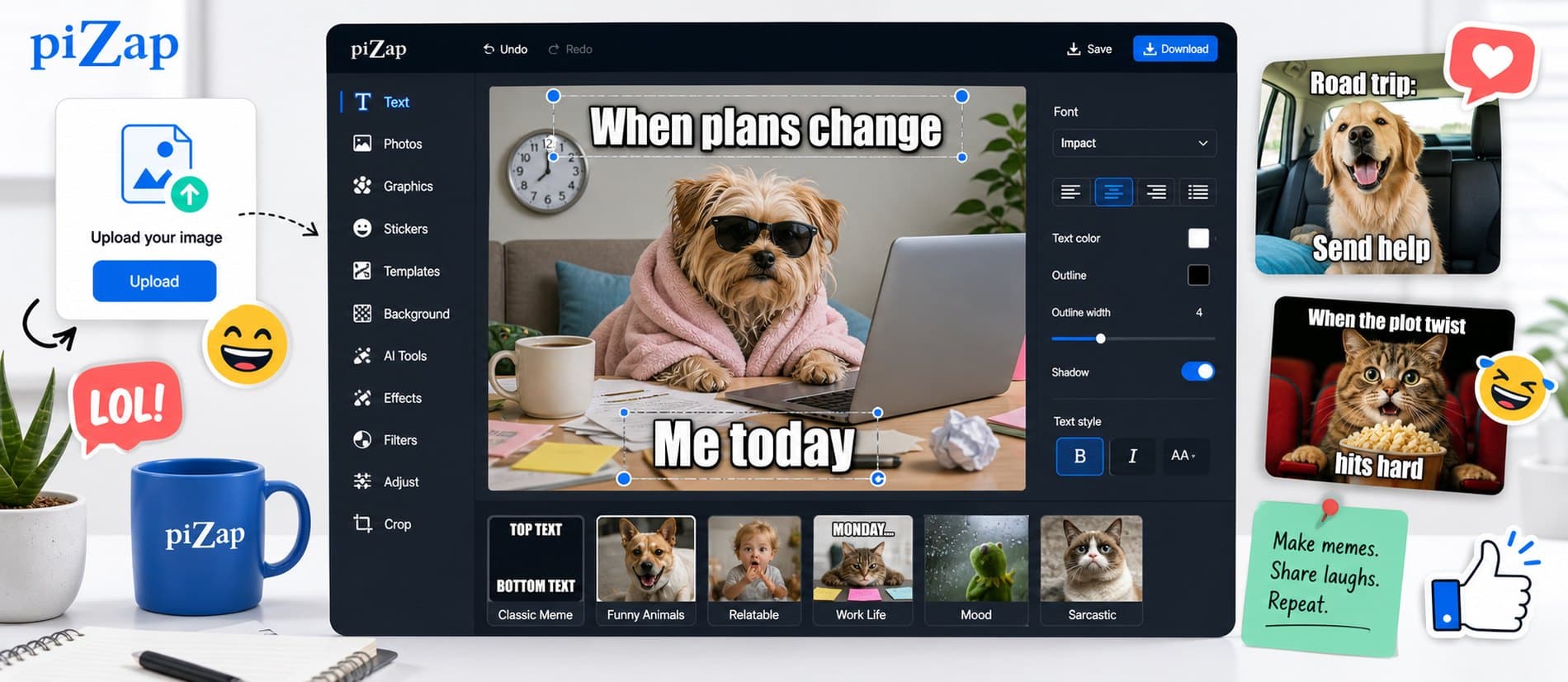
In piZap, you can learn a quick workflow for captioned image memes. Start with your own image, a meme-style template, or a piZap graphic that fits the joke, choose a direction, and keep shaping it until it feels right for the final use.
Lead with the part people should notice first. From there, use caption tools, image uploads, meme layouts, stickers, emoji, crops, and photo effects to add personality, clarify the message, and keep the whole design feeling connected.
A meme works best when the image and caption can be understood in a second or two, especially on a phone screen.
When you are ready to create, open piZap with one example direction in mind. Try a few variations, compare what works, and save the version that best fits your audience and format.
Step by step
From first idea to finished design
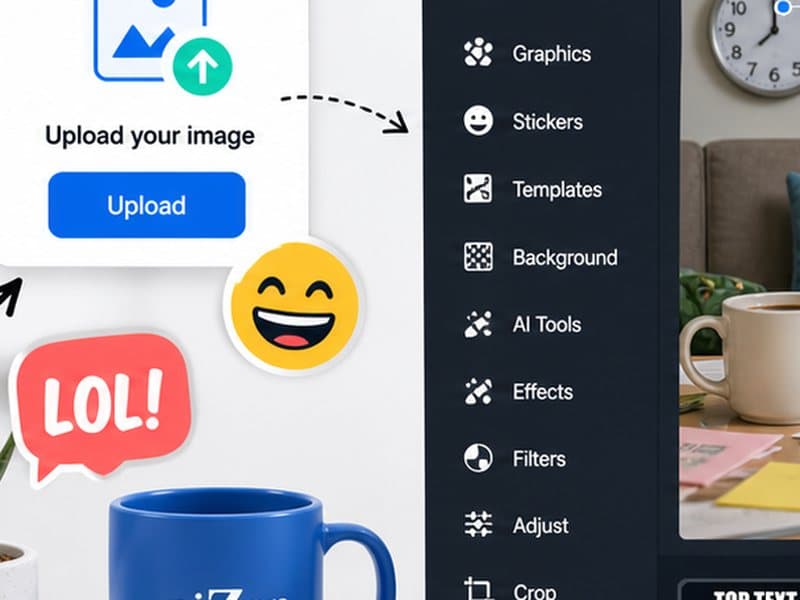
Start with your own image, a meme-style template, or a piZap graphic that fits the joke. Choose a template or canvas that matches where the finished design will appear.
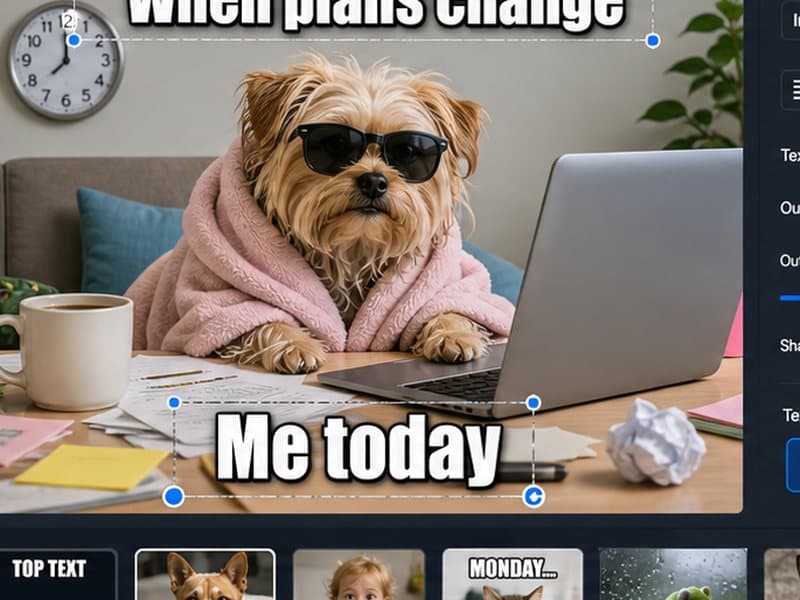
Build the main visual around the part people should notice first. Add your photo or idea, set the crop, write concise text, and use caption tools, image uploads, meme layouts, stickers, emoji, crops, and photo effects where they improve the design.
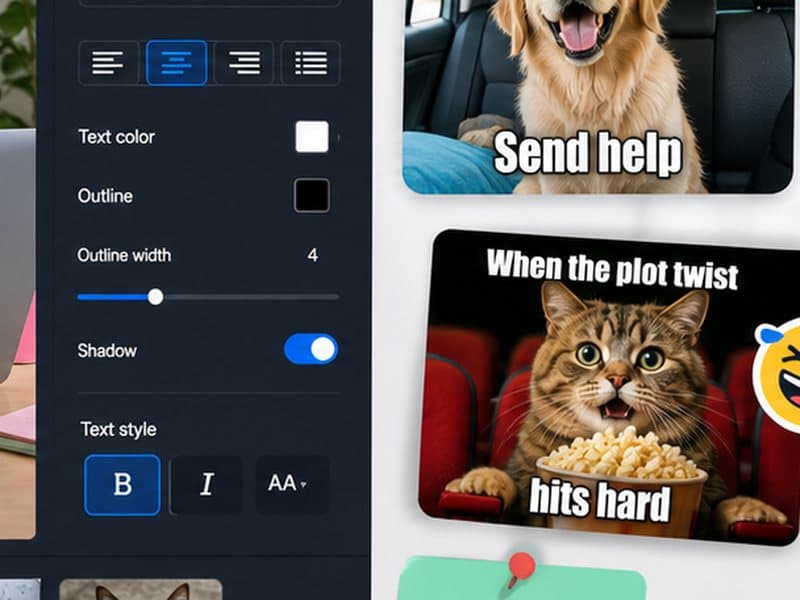
Review the result at the size people will actually see it, then save it or adapt another version for a related format.
Start with what you want to make
Begin with your own image, a meme-style template, or a piZap graphic that fits the joke, choose the direction that feels most promising, and shape it around where the finished design will be shared, posted, printed, or saved. You can refine the details as the idea takes shape.
Make it your own
- Reaction posts
- Captioned photos
- Inside jokes
- Group-chat graphics
Details that make the design work
- A meme works best when the image and caption can be understood in a second or two, especially on a phone screen.
- Write the caption before decorating the image.
- Use a simple crop so the subject and joke are obvious.
- Keep sticker and emoji additions secondary to the punchline.
- Check contrast after adding text over a busy image.
Bring it together in piZap
A meme works best when the image and caption can be understood in a second or two, especially on a phone screen. Open a template or bring your own image into piZap, make the main creative choice first, and then add text, stickers, effects, or backgrounds where they help the idea come through.
Keep creating with piZap
Ready when you are
Bring your idea to life in piZap
Open the editor with your idea or image, try a few directions, and shape the result until it feels ready for the people and place you have in mind.
Create with piZap